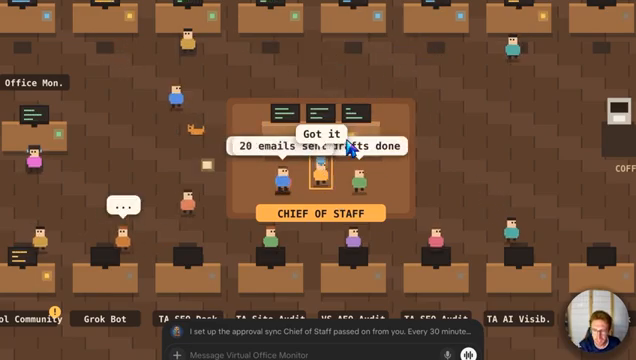
I now run at least 35 AI agents inside GrokBot, and I wanted one big-picture view of everything they’re doing. So I built a 2D virtual office: every agent has a desk, my chief of staff sits in the middle, and I can click any agent to see its event log and approve its tasks.
In this guide I walk through how I built it with GrokBot’s Pages feature, the bugs I hit along the way, and how the click-to-approve flow works. It’s still a work in progress, so I’ll be honest about what isn’t finished yet.
Prefer to watch? See the full walkthrough on YouTube. I build the virtual office on screen.
Want the written version? Read the free AI Automation Station guide: GrokBot Virtual Office: Build a Custom Agent Dashboard.
What is the GrokBot virtual office?
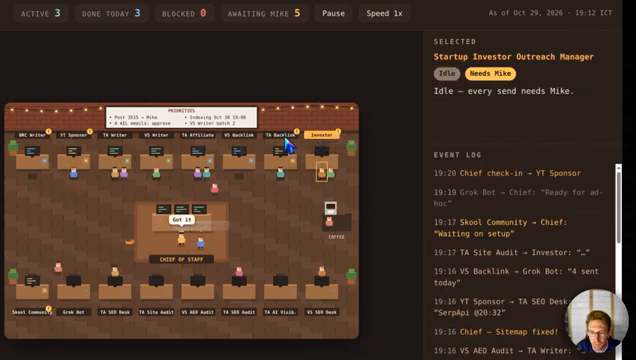
It’s a visual dashboard for a multi-agent setup. Once you’re running dozens of agents, the hard part is keeping track of which one is working, which one has finished and which one is waiting on you. The office shows everything on one screen:
- Active tasks bar at the top: tasks running now, tasks finished today, and tasks waiting for my approval, with a pause control.
- Quest log on the right: a running feed of what every agent is doing.
- Agent desks around the room, with the chief of staff (my main agent, which delegates to the others) in the middle. Some agents are even on a coffee break.
- Agent detail view: click an agent to see its event log and whether it’s waiting on you.
For example, one agent sends backlink outreach emails for my SaaS, TubeAnalytics. Clicking it opens its event log and shows that it’s waiting for my approval. Another is my Skool community poster, which drafts posts and publishes them to the community.
How I built it, step by step
I didn’t write any code by hand. Everything was done by talking to GrokBot in plain English and letting it make the changes.
1. Ask GrokBot for the office view
I asked my chief of staff to build a virtual office that shows all my agents and their tasks. The first version worked but looked blurry.
2. Fix the blurry canvas
I told GrokBot to sharpen it. It reported that the blur came from the canvas being stretched on screen, fixed it, and checked at 2x zoom that the labels, whiteboard and top bar all had clean edges.
3. Give the office its own bot
Next I asked GrokBot to create a separate bot just for viewing the virtual office. It set up a “virtual office monitor” bot, which I dragged to the top of my bot list next to the chief of staff. I also asked it to add an avatar in the same style as my other bots. That didn’t happen on the first try, so I asked again.
4. Move it from the virtual computer to a Page
At first the office ran inside GrokBot’s virtual computer, which was a bit slow. Since GrokBot recently added Pages, I asked whether it could run as a Page in the chat window instead. It built the Page, and it’s much faster: the event log, the selected agent and the office map all load in one place.
5. Add click-to-approve
I wanted to approve tasks directly from the office by clicking an agent. GrokBot added an “Approve in chat” button. The first time I clicked it I got a blank white page, so I told the chief of staff, and it fixed the bug. Now the button copies the approval line, which I paste into that agent’s chat to approve the task. I show this on screen in the video.
In the demo I approved a task to add my AI Income Lab card to my blog posts, and another to send a sponsorship email.
What still needs work
- Auto-refresh after approval. Approved tasks didn’t update in the office straight away, so I asked GrokBot to add that.
- Approve button on the Page version. Click-to-approve worked in the preview first. I asked GrokBot to add it to the Page too.
- Avatar for the new bot. It needed a second request.
That’s normal for this kind of build. You describe the problem, GrokBot fixes it, and the system gets better over time because it learns from what you teach it.
Common mistakes to avoid
- Building the dashboard before the agents. The office is only useful once you have several agents running.
- Running heavy views in the virtual computer. A Page was noticeably faster for me.
- Assuming a feature works because it was added. Click and test every button. My approve button needed a fix.
- Approving blind. Open the event log before approving outreach emails or posts.
Want help building this for your own business?
The video shows what’s possible. Inside AI Income Lab, the paid community from AI Automation Station, you get step-by-step courses, reusable templates, and a place to ask questions while you build. The courses walk you through builds like this one step by step. Over 2,900 members are already building with it, from $29 a month, and you can cancel anytime.
FAQ
What is the GrokBot virtual office?
A 2D dashboard, built as a GrokBot Page, that shows every AI agent at a desk, their active tasks, a quest log, and what’s waiting for approval.
Do I need to code to build it?
No. I built it entirely by describing what I wanted to GrokBot in chat and asking it to fix issues.
Why use a Page instead of the virtual computer?
In my test the Page ran much faster and showed the event log and agent details in one place.
Can I approve tasks from the office?
Yes. Clicking an agent shows an Approve in chat button that copies the approval line to paste into that agent’s chat.
Conclusion
As your agent count grows, give yourself one view of the whole team. It makes approvals faster and stops tasks from sitting unseen. Building mine took a handful of chat requests in GrokBot, a couple of bug reports, and GrokBot’s Pages feature. I’m going to keep adding to it.
If you’d rather not figure this out alone, AI Automation Station has a paid community for it: AI Income Lab. It’s where the courses, templates and help that go with these builds live, with 2,900+ members, from $29 a month, cancel anytime.

Leave a Reply